Business & Tech Essentials
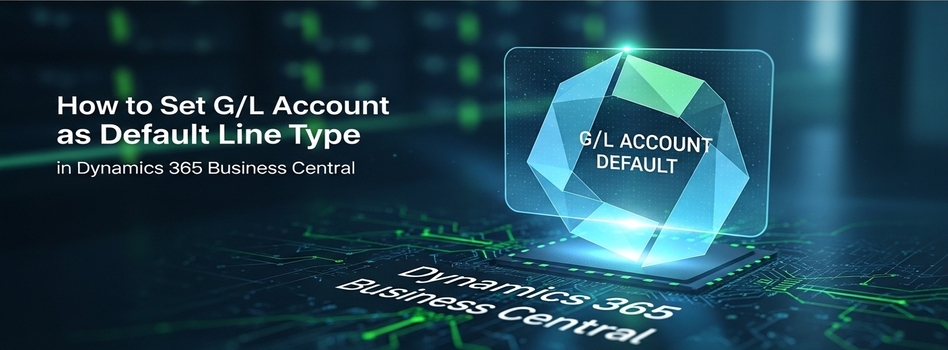
How to Set G/L Account as Default Line Type in Dynamics 365 Business Central
Today we will learn how to set G/L accounts as the default line type in Dynamics 365 Business Central for your sales and purchase invoices.
This setup is very helpful when you want to save time. Instead of manually changing the line type from "Item" to "G/L Account" on every single transaction, Business Central allows you to change the default setting, so it populates automatically. This reduces manual work and speeds up data entry.
If you want to set up dimensions correctly and avoid reporting issues later, working with a Microsoft dynamics 365 consultant can really help.
What Is the Default Line Type in Business Central?
By default, Business Central often assumes you are selling or buying items. If your business primarily deals with G/L accounts, you can change this behaviour. By updating the setup, every time you open a new invoice, the first column is already set to "G/L Account" without you having to click anything.
Steps to Set G/L Account as Default Line Type
Watch this quick video to understand how the default line type works in real time and how it applies automatically in invoices.
Step 1: Set Up Sales Invoices
- In the search bar, type Sales & Receivables Setup and open it.
- Find the Document Default Line Type field.
- Select G/L Account from the options.
Step 2: See How It Works in Sales Invoices
- Go to a new Sales Invoice.
- You will notice that the line type is automatically populated as G/L Account.
- This reduces manual work and ensures consistency.
Step 3: Set Up Purchase Invoices
- In the search bar, type Purchases & Payables Setup and open it.
- Find the Document Default Line Type field.
- Select G/L Account from the options.
Step 4: See How It Works in Purchase Invoices
- Go to a new Purchase Invoice.
- The line type will automatically appear as G/L Account here as well.
- This confirms that your setup is working across both sales and purchasing.
Why This Setup Is Important
- Saves time during daily data entry.
- Reduces manual clicks on every invoice line.
- Ensures consistency across your team.
Final Notes
So today we learned how to set G/L accounts as the default line type in sales and purchase invoices.
This is a small configuration, but it plays a big role in speeding up your daily operations. Practice this setup in your system and you will see how much time it saves.
See you next time with another Dynamics 365 topic.
Disclaimer: All logos, trademarks, and brand names used in this document are the property of their respective owners. Their use here is for identification purposes only and does not imply endorsement.
Recent News
How to Set Default General Product Posting Groups in Dynamics 365 Business Central
08-09-2026

How to Apply Sensitivity Labels in Power BI for Data Protection
08-09-2026

LEAP 2026 Day 4 Highlights: $15B in Total Investments & The Human Capital Era
04-09-2026

LEAP 2026 Day 3 Highlights: $857M in Tech Deals, VC Growth & Local Manufacturing
03-09-2026

LEAP 2026 Day 2 Highlights: More Than $2.5 Billion Invested to Boost Saudi Arabia's Data Hubs and Digital Capabilities
02-09-2026

LEAP 2026 Day 1 Highlights: $15B+ Investments & 5 Enterprise Tech Trends
01-09-2026
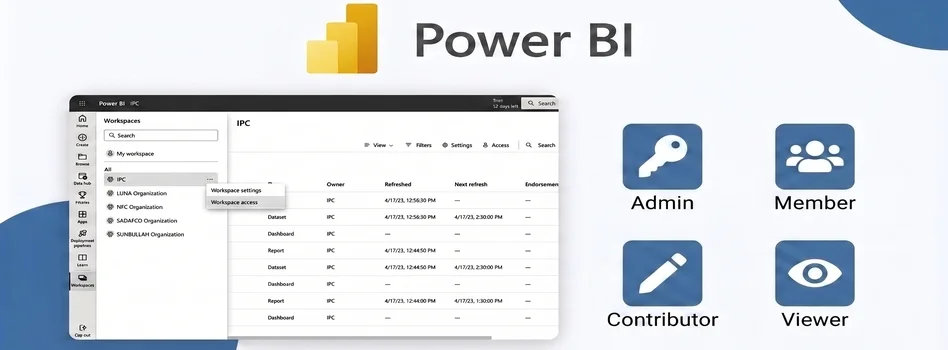
How to Assign Workspace Roles and Permissions in Power BI Service
25-08-2026
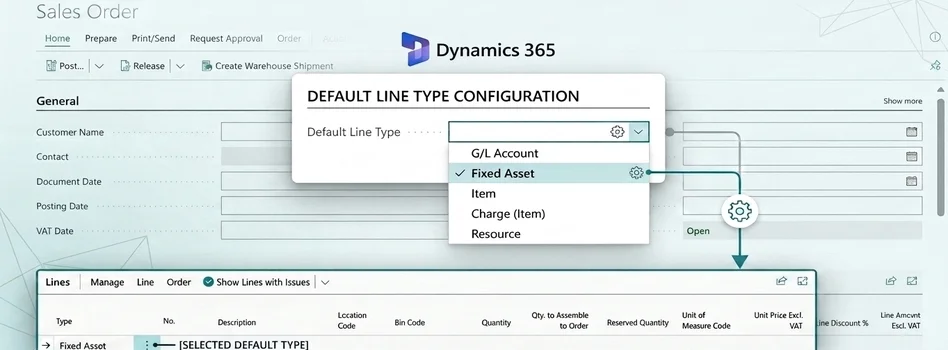
How to Set Default Document Line Types in Dynamics 365 Business Central
25-08-2026
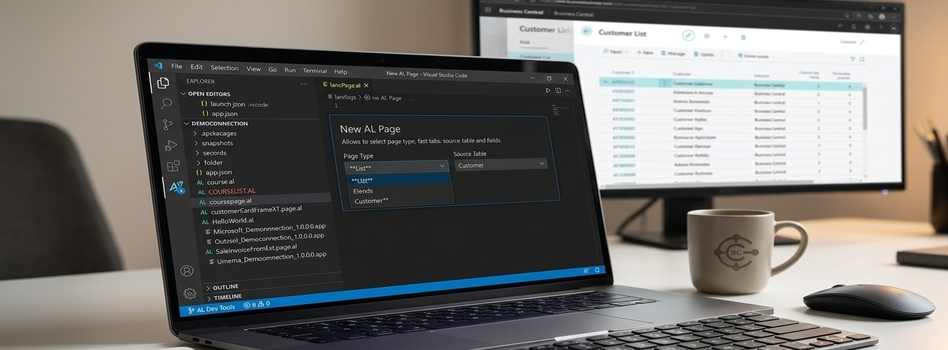
How to Create a List Page in Business Central Using AZ AL Dev Tools
19-08-2026
How to Connect Azure SQL Database to Power BI Desktop
19-08-2026

Your choice regarding cookies on this site
Policy, By Continuing, You are agreeing to Our Terms of Use and Consenting to the above.
Privacy Policy Powered By |