Business & Tech Essentials

How to Connect Azure SQL Database to Power BI Desktop
Working with business data often means bringing information from different sources into one place. Azure SQL Database can store your business data, while Power BI Desktop can turn that data into interactive reports and visual insights.
In this guide, we will look at how Azure SQL Database and Power BI work together and how you can connect your Azure data to Power BI for business reporting.
What Are Azure SQL Database and Power BI?
Azure SQL Database is a cloud-based database service that can store and manage business data. Power BI, on the other hand, helps us turn that data into reports, charts, and dashboards.
Think of it this way:
Azure SQL Database → Stores the data → Power BI → Turns the data into reports
For example, your sales, customer, or operational data can be stored in Azure SQL Database. Power BI can then use that data to show trends, performance indicators, and other useful business insights.
How to Connect Azure SQL Database to Power BI
Connecting Azure SQL Database with Power BI Desktop is straightforward.
Step 1: Open Power BI Desktop
Open Power BI Desktop and go to the Home tab.
Select Get Data to view the available data sources.
Step 2: Select Azure SQL Database
From the available connectors, select Azure SQL Database.
Power BI will open a connection window where you can provide your database details.
Step 3: Enter Your Database Details
Enter the required Azure SQL Database information, such as the server and database name.
You will then be asked to authenticate your connection using the appropriate credentials.
Step 4: Select Your Data
After connecting successfully, Power BI displays the available tables and data.
Select the tables you need for your report and load them into Power BI Desktop.
You can also transform, shape, or merge your data before creating the report.
How Azure Data Becomes a Power BI Report
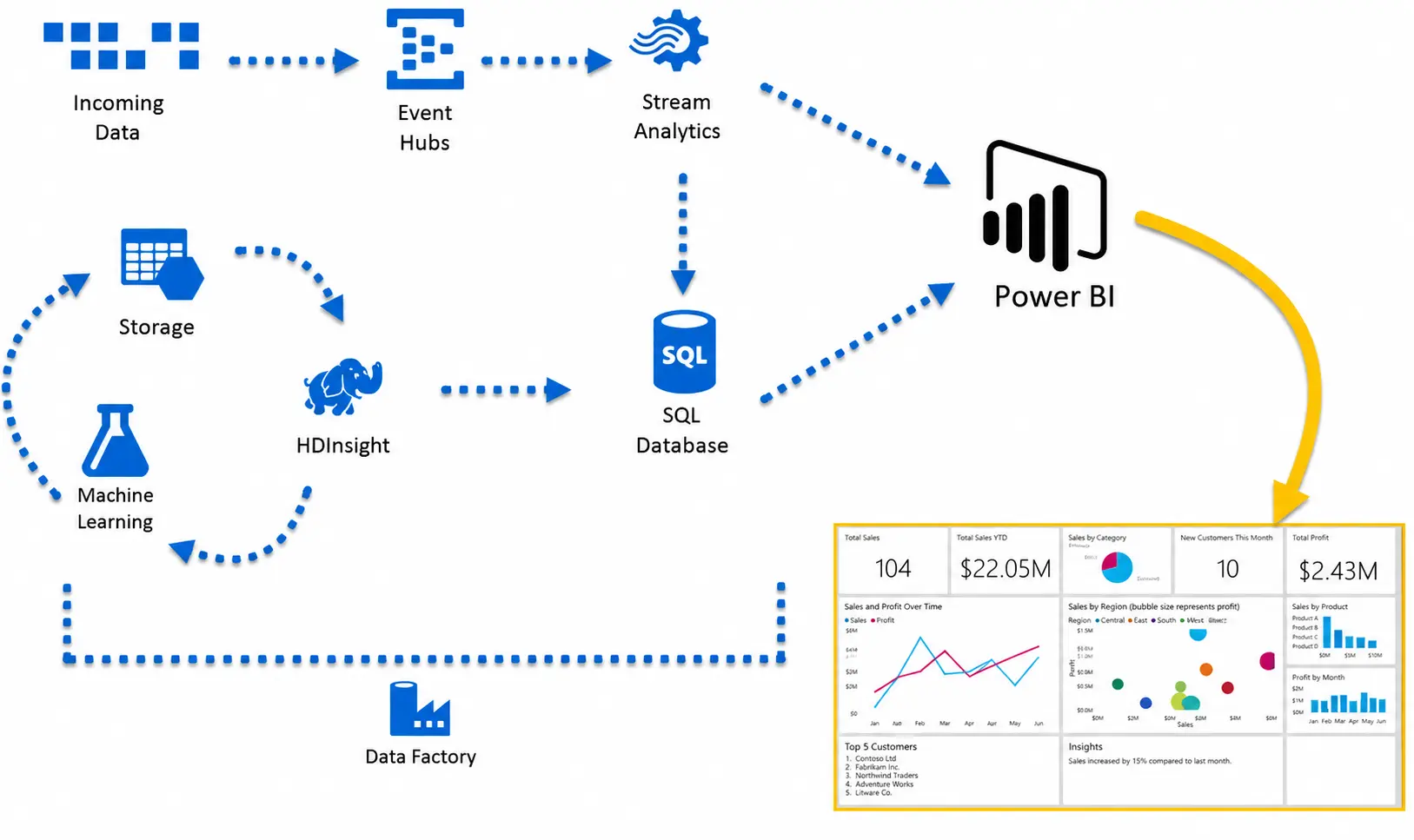
Once your data is connected, Power BI can help you turn the raw database information into something easier to understand.
For example:
Azure SQL Database → Power BI Desktop → Data Transformation → Visuals & Reports
Instead of checking information across different data sources, we can bring the required data together in Power BI and create a single view of business performance.
Why Use Power BI with Azure SQL Database?
When business data comes from multiple sources, understanding it can become difficult. Connecting Azure data with Power BI gives us a more convenient way to analyze and present that information.
With this approach, you can:
- Analyze business trends
- Monitor key performance indicators
- Create interactive reports
- Bring data from cloud sources into one reporting environment
- Make business information easier to understand
For example, a company may have sales data stored in Azure SQL Database while managers need a simple dashboard to monitor monthly performance. Power BI can connect to that data and present it through charts and reports.
Need Help with Power BI?
If connecting Azure data or building business dashboards feels complicated, Out2Sol Global, a Power BI consulting firm, can help you design and implement reporting solutions based on your business data.
Final Thoughts
Azure SQL Database and Power BI work well together when you need to turn cloud-based business data into useful reports. Azure provides the data storage, while Power BI helps us explore that data and present it in a clear and understandable way.
The important thing is to start with reliable data, connect the right sources, and build reports that answer real business questions.
See you next time with another Power BI topic.
Disclaimer: All logos, trademarks, and brand names used in this document are the property of their respective owners. Their use here is for identification purposes only and does not imply endorsement.
Recent News
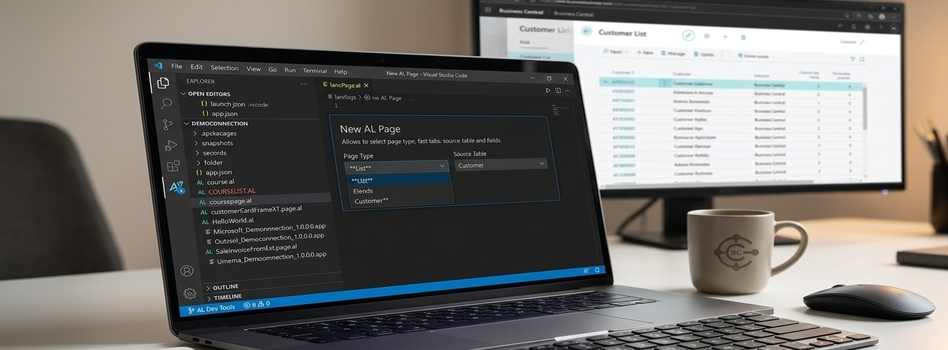
How to Create a List Page in Business Central Using AZ AL Dev Tools
19-08-2026

How to Do Predictive Analysis in Power BI Desktop
07-08-2026

How to Navigate Department Documents in SharePoint
07-08-2026
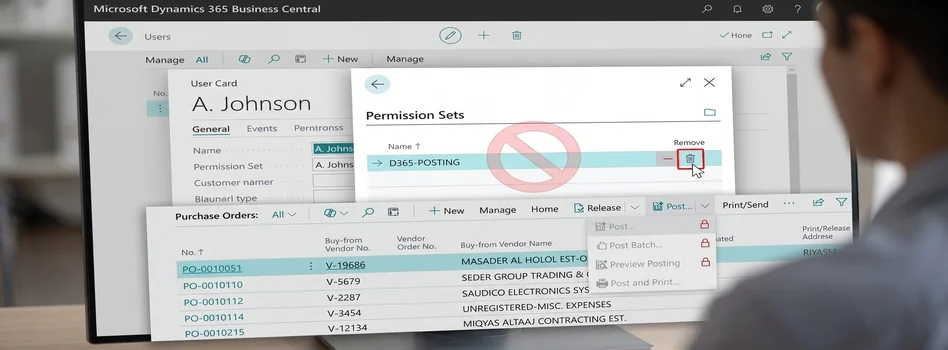
How to Remove or Hide Posting Rights for Users in Dynamics 365 Business Central
07-08-2026
Power BI Mobile Application Features and Usage Guide
27-07-2026

ZATCA E-Invoicing Phase 2 Integration Explained
27-07-2026

Saudi Arabia's NCA Cybersecurity Guidelines
27-07-2026

Row-Level Security (RLS) in Power BI
27-07-2026

How to Use Power BI Copilot
20-07-2026

Microsoft SharePoint Deserialization Vulnerabilities: What Organizations Need to Know
15-07-2026

Your choice regarding cookies on this site
Policy, By Continuing, You are agreeing to Our Terms of Use and Consenting to the above.
Privacy Policy Powered By |