Business & Tech Essentials
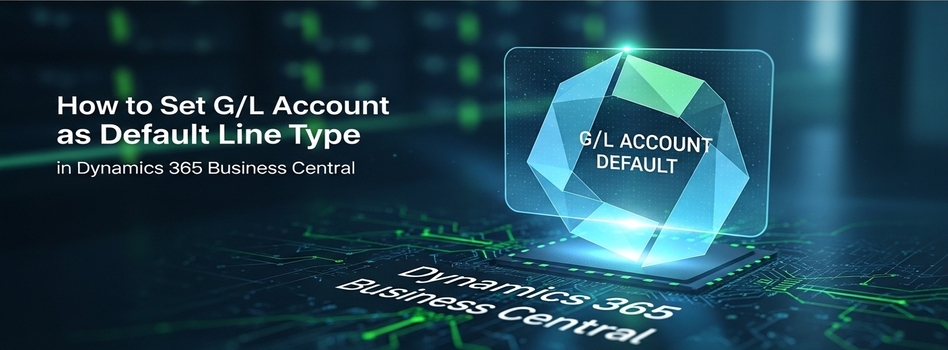
How to Set G/L Account as Default Line Type in Dynamics 365 Business Central
Today we will learn how to set G/L accounts as the default line type in Dynamics 365 Business Central for your sales and purchase invoices.
This setup is very helpful when you want to save time. Instead of manually changing the line type from "Item" to "G/L Account" on every single transaction, Business Central allows you to change the default setting, so it populates automatically. This reduces manual work and speeds up data entry.
If you want to set up dimensions correctly and avoid reporting issues later, working with a Microsoft dynamics 365 consultant can really help.
What Is the Default Line Type in Business Central?
By default, Business Central often assumes you are selling or buying items. If your business primarily deals with G/L accounts, you can change this behaviour. By updating the setup, every time you open a new invoice, the first column is already set to "G/L Account" without you having to click anything.
Steps to Set G/L Account as Default Line Type
Watch this quick video to understand how the default line type works in real time and how it applies automatically in invoices.
Step 1: Set Up Sales Invoices
- In the search bar, type Sales & Receivables Setup and open it.
- Find the Document Default Line Type field.
- Select G/L Account from the options.
Step 2: See How It Works in Sales Invoices
- Go to a new Sales Invoice.
- You will notice that the line type is automatically populated as G/L Account.
- This reduces manual work and ensures consistency.
Step 3: Set Up Purchase Invoices
- In the search bar, type Purchases & Payables Setup and open it.
- Find the Document Default Line Type field.
- Select G/L Account from the options.
Step 4: See How It Works in Purchase Invoices
- Go to a new Purchase Invoice.
- The line type will automatically appear as G/L Account here as well.
- This confirms that your setup is working across both sales and purchasing.
Why This Setup Is Important
- Saves time during daily data entry.
- Reduces manual clicks on every invoice line.
- Ensures consistency across your team.
Final Notes
So today we learned how to set G/L accounts as the default line type in sales and purchase invoices.
This is a small configuration, but it plays a big role in speeding up your daily operations. Practice this setup in your system and you will see how much time it saves.
See you next time with another Dynamics 365 topic.
Recent News

How to Set Default Dimensions for GL Accounts in D365 Business Central
21-04-2026

Microsoft Copilot in Depth: Features, Use Cases, and Business Impact (2026)
19-04-2026

Steps to Manage Data Source Permissions for APIs in Power BI Desktop and Service
19-04-2026

Sending Alerts Using Power Automate in SharePoint (Step-by-Step Guide)
13-04-2026
%20in%20Brief.webp)
AI (Artificial Intelligence) in Brief
08-04-2026
How to Post a Batch in Purchase Orders in D365 Business Central
06-04-2026
How to Manage User Permissions in a SharePoint Document Library
29-03-2026
Microsoft Power BI Gateway: A Professional Guide
16-03-2026

Benchmarking Discount Voucher Practices: 2026 Industry Guide
16-03-2026

Importance of Trademarking Your Logo (How to Start Today)
07-03-2026

Your choice regarding cookies on this site
Policy, By Continuing, You are agreeing to Our Terms of Use and Consenting to the above.
Privacy Policy Powered By |