Business & Tech Essentials
Microsoft Power BI Gateway: A Professional Guide
Hello everyone! Welcome to another class. As your Microsoft technical instructor, I am here to help you master the "bridge" of the data world. Let’s dive into the core concepts you need to succeed in 2026.
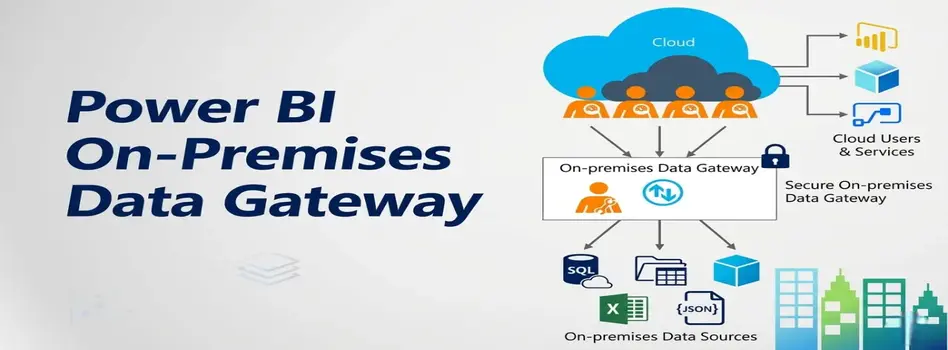
In our modern cloud ecosystem, data often lives in two worlds: the Cloud (Power BI, PowerApps) and On-Premises (your local SQL servers, SharePoint, or Excel files).
A Gateway is a secure, software-based bridge. It facilitates the quick and safe transfer of data from your internal network to Microsoft Cloud services without requiring complex firewall reconfigurations.

Take Your Data to the Next Level
Need expert help with your enterprise setup? Reach out to our specialized Power BI consulting firm to optimize your infrastructure today.
Watch The Complete Video on Power BI Gateway
Selecting the Correct Gateway Type
As architects, we must choose the right tool for the job. Microsoft provides three primary modes:
|
Gateway Mode |
Target Audience |
Key Enterprise Features |
|
On-premises Data Gateway (Standard) |
Organizations / Teams |
Supports multiple users and multiple data sources. Compatible with Power BI, Power Automate, and Logic Apps. |
|
Personal Mode |
Individual Analysts |
Runs as a background application on your specific PC. Cannot be shared with others. |
|
Virtual Network (VNet) |
Cloud Architects |
A managed service that connects to data sources secured within an Azure VNet. No local installation required. |
Pre-Installation: System Requirements

Before we begin the installation wizard, we must ensure our environment meets these professional benchmarks. Stability is our priority.
-
Operating System: Windows Server 2019/2022 or Windows 10/11 (64-bit).
-
Hardware Framework: .NET Framework 4.8 or higher.
-
Storage: Minimum 4 GB disk space for performance logging.
-
Connectivity: Always use a wired network. Wireless connections lack the consistency required for high-volume data refreshes.
-
Availability: The host machine must remain on and connected to the internet 24/7. If the machine sleeps, the data refresh fails.
7-Step Implementation Workflow
Follow this professional sequence to ensure a "zero-error" deployment:

-
Requirement Audit: Verify your server hardware and OS versions.
-
Configuration Planning: Determine if you need a Cluster (for high availability) or a single instance.
-
Gateway Registration: Install the software and sign in using your corporate credentials.
-
Data Source Mapping: Add your local databases (SQL, Oracle, etc.) into the Power BI Service online.
-
Administrative Assignment: Appoint a Gateway Admin to monitor traffic and health.
-
Developer Provisioning: Grant "User" permissions to the Power BI developers in your organization.
-
Installation Validation: Finalize via the Installation Wizard and run a status check.
Latest 2026 Features & Security
Staying current is key to professional excellence. Here are the latest updates:
-
Enhanced Encryption: All data moving through the gateway is encrypted via TLS 1.3 by default.
-
Fabric Integration: The gateway now seamlessly supports Microsoft Fabric workloads, including Data Factory and Real-Time Intelligence.
-
Auto-Update Capabilities: You can now enable automatic monthly updates to ensure your security patches are always current.
-
the "Check Status" button to ensure it shows "Online."
Key Benefits
-
Real-Time Insights: Enables DirectQuery, so your dashboards update the second your database changes.
-
Scheduled Refresh: Automate your data updates (e.g., every morning at 8:00 AM) so your team never sees stale data.
-
Security: All data is encrypted via TLS 1.3 during transit.
-
Centralized Control: Admins can monitor performance and user access from one central dashboard.
Server Information (Hosting Example)
If you are managing your own server, here is a typical professional environment configuration:
-
Server OS: Microsoft Windows Server 2019
-
Processor: Intel Core Processor (Haswell) @ ~2.5GHz
-
Panel: Plesk Obsidian (if using for web-based data management)
-
Status: The machine must be "Always On" (No sleep mode).
What You Have Learned
In today’s lesson, we mastered the role of the On-Premises Data Gateway as a secure bridge between your local data and the Microsoft Cloud. You now understand the differences between Standard and Personal modes, the technical benchmarks for a stable 2026 server environment, and the professional 7-step deployment workflow. By implementing these practices, you can ensure your reports remain accurate, automated, and secure.
Keep practicing, stay curious, and see you in the next class!
Disclaimer: All logos, trademarks, and brand names used in this document are the property of their respective owners. Their use here is for identification purposes only and does not imply endorsement.
Recent News

Saudi Arabia's NCA Cybersecurity Guidelines
27-04-2026

How to Set G/L Account as Default Line Type in Dynamics 365 Business Central
26-04-2026

How to Set Default Dimensions for GL Accounts in D365 Business Central
21-04-2026

Microsoft Copilot in Depth: Features, Use Cases, and Business Impact (2026)
19-04-2026

Steps to Manage Data Source Permissions for APIs in Power BI Desktop and Service
19-04-2026

Sending Alerts Using Power Automate in SharePoint (Step-by-Step Guide)
13-04-2026
%20in%20Brief.webp)
AI (Artificial Intelligence) in Brief
08-04-2026
How to Post a Batch in Purchase Orders in D365 Business Central
06-04-2026
How to Manage User Permissions in a SharePoint Document Library
29-03-2026

Benchmarking Discount Voucher Practices: 2026 Industry Guide
16-03-2026

Your choice regarding cookies on this site
Policy, By Continuing, You are agreeing to Our Terms of Use and Consenting to the above.
Privacy Policy Powered By |