Business & Tech Essentials
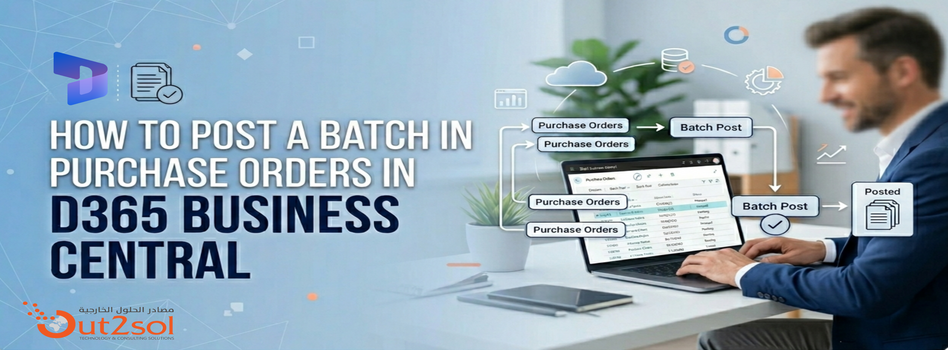
How to Post a Batch in Purchase Orders in D365 Business Central
Today we will learn how to post a batch in purchase orders or purchase invoices in Dynamics 365 Business Central. When you are working with multiple invoices daily, posting them one by one becomes time-consuming. That is where batch posting helps, allowing you to process multiple documents in a single action without repeating the same steps again and again.
To simplify batch processing and improve ERP performance, connect with a skilled Microsoft Dynamics 365 Consultant today.
What is Batch Posting in Business Central
In short, Batch posting is a built-in feature in Business Central that allows users to post multiple purchase invoices together instead of handling each document separately.
In real business scenarios, finance teams often deal with dozens of invoices at once. Using batch posting not only saves time but also reduces the chances of missing or delaying entries. It keeps your workflow consistent and faster, especially during closing periods.
Watch Complete Video
Watch this quick walkthrough to understand how batch posting works in real time inside Business Central.
Steps to Post a Batch in Purchase Orders
Step 1 Open Purchase Invoices
- Go to Purchase Invoices from the search bar
- Open the list of invoices
Step 2 Select Multiple Invoices
- From the list
- Select the invoices you want to post together
Step 3 Click on Post Batch
- Click on Post
- Then choose Post Batch from the options
Step 4 Confirm the Action
- A confirmation message will appear showing how many invoices will be posted
- Click Yes to continue
Step 5 System Processing
- Business Central will process all selected invoices in one go and show a completion message
- Click OK
Step 6 Verify Results
-
Go back to the invoice list and you will see that all selected documents are now posted
Things to Check Before Batch Posting
Before using batch posting, it is always a good practice to review your documents:
- Posting dates should be correct
- Required fields must be filled
- No validation errors in invoices
- User permissions should allow posting
This small check helps avoid errors during processing.
Final Notes
So today we learned how to post a batch in purchase orders in Business Central. It is a simple feature, but in real scenarios, it makes a big difference by saving time and keeping your work organized.
Try this in your system and see how it improves your daily workflow.
See you next time with another Microsoft topic.
Recent News
How to Manage User Permissions in a SharePoint Document Library
29-03-2026
Microsoft Power BI Gateway: A Professional Guide
16-03-2026

Benchmarking Discount Voucher Practices: 2026 Industry Guide
16-03-2026

Importance of Trademarking Your Logo (How to Start Today)
07-03-2026

Set Up Default Account Numbers for BC Sales Invoices
02-03-2026

Saudi PDPL Enforcement Updates & Data Privacy Guidelines
23-02-2026

How to Create a Timeline in Power BI
14-02-2026

Cyber Security Awareness and Compliance Guide for Organizations
07-02-2026

Microsoft PBVIZ Files: How to Import and Use Custom Power BI Visuals
21-01-2026

How to Extract SAP Data Using APIs and OData for Power BI Reporting
13-01-2026

Your choice regarding cookies on this site
Policy, By Continuing, You are agreeing to Our Terms of Use and Consenting to the above.
Privacy Policy Powered By |