
Business & Tech Essentials
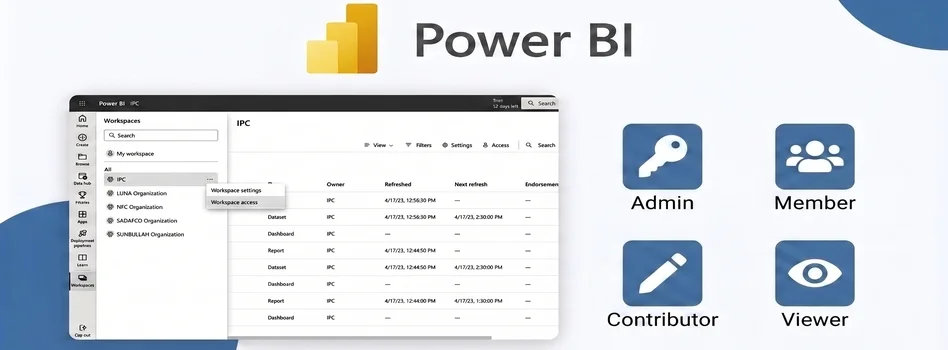
How to Assign Workspace Roles and Permissions in Power BI Service
Today, we will look at how you can manage workspace roles and permissions in Power BI Service. When we share reports and dashboards with different users, everyone does not need the same level of access. Some users may only need to view reports, while others may need to create, edit, or manage content.
Power BI makes this easier by providing different workspace roles that we can assign based on what each user needs to do. So in this class we will learn the workplace roles, their types and how to assign them.
If you need help setting up Power BI permissions, reports, or workspace security, Out2Sol Global, a leading Power BI consulting firm, can help you create a reporting environment that fits your business requirements.
What Are Workspace Roles in Power BI?
A Power BI workspace is where we can manage reports, dashboards, and other Power BI content. When we give users access to a workspace, we can also decide what they are allowed to do.
Power BI provides four main workspace roles:
- Admin
- Member
- Contributor
- Viewer
Each role provides a different level of access. So, before adding a user, we should first understand what that person actually needs to do.
The Four Role of Power BI Workspace
1. Admin
An Admin has the highest level of access to the workspace. This role is generally used for people who are responsible for managing the workspace and its permissions.
For example, if you are managing a department's Power BI workspace, you may assign the Admin role to the person responsible for managing users and workspace settings.
2. Member
A Member can work with other users and content within the workspace. This role is useful for team members who need to collaborate on Power BI reports and dashboards.
3. Contributor
A Contributor can work on the content available in the workspace. For example, they may create or edit reports based on the access provided to them.
This can be useful for analysts or developers who work on Power BI content but do not need to manage the entire workspace.
4. Viewer
A Viewer is mainly used when someone needs to access and view reports or dashboards without working on the underlying content.
For example, if a manager only wants to check monthly sales or performance reports, Viewer access may be enough.
How to Assign Permissions in Power BI Service
Now, let's see how we can give users access to a Power BI workspace.
Step 1: Open Your Workspace
First, sign in to Power BI Service and open the workspace where your reports or dashboards are available.
Once you open the workspace, you can manage access for the users who need to work with your content.
Step 2: Manage Workspace Access
Next, go to the option for managing workspace access or permissions.
Here, you can see the users who have access and manage the permissions provided to them.
Before assigning a role, think about what the user needs to do. If someone only needs to view a report, there is usually no reason to give them higher-level access.
Step 3: Add the User
Now, enter the user's email address to give them access.
After adding the user, select the appropriate workspace role:
|
Role |
Best For |
|---|---|
|
Admin |
Managing the workspace and permissions |
|
Member |
Team collaboration |
|
Contributor |
Creating and editing content |
|
Viewer |
Viewing and interacting with reports |
This allows us to organize workspace access according to each user's responsibilities.
Why Should We Manage Power BI Permissions Carefully?
When several people work with the same reports, giving everyone the same permissions can make workspace management difficult.
For example, suppose your sales team uses a Power BI workspace. Your report developer may need to edit reports, while the sales manager may only need to view the final dashboard.
Instead of giving both users the same access, we can assign roles according to their requirements.
This makes it easier to control access and keep the workspace organized.
Final Thoughts
Managing Power BI workspace roles and permissions is a simple but important part of working with Power BI Service. We can use Admin, Member, Contributor, and Viewer roles to give users the level of access they need.
The best approach is simple: understand what the user needs to do first, and then assign the appropriate role.
This helps your team collaborate more effectively while keeping your Power BI workspace organized.
See you next time with another Power BI topic.
Disclaimer: All logos, trademarks, and brand names used in this document are the property of their respective owners. Their use here is for identification purposes only and does not imply endorsement.
Recent News
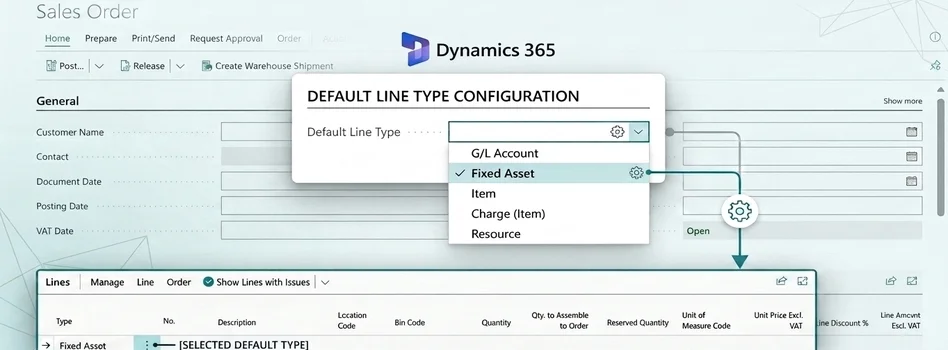
How to Set Default Document Line Types in Dynamics 365 Business Central
25-08-2026
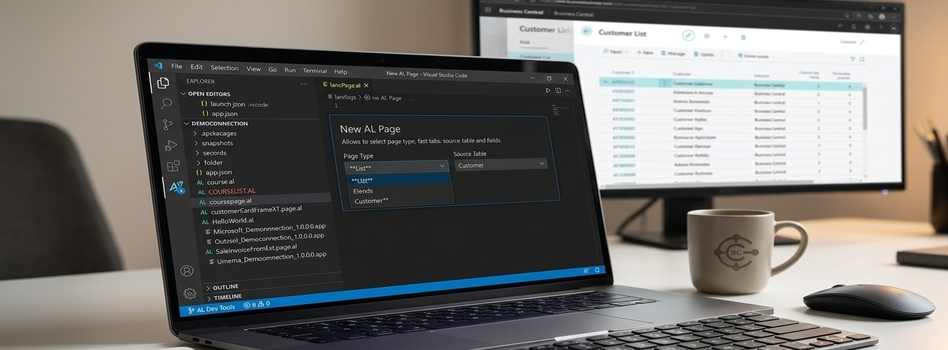
How to Create a List Page in Business Central Using AZ AL Dev Tools
19-08-2026

How to Connect Azure SQL Database to Power BI Desktop
19-08-2026

How to Do Predictive Analysis in Power BI Desktop
07-08-2026

How to Navigate Department Documents in SharePoint
07-08-2026
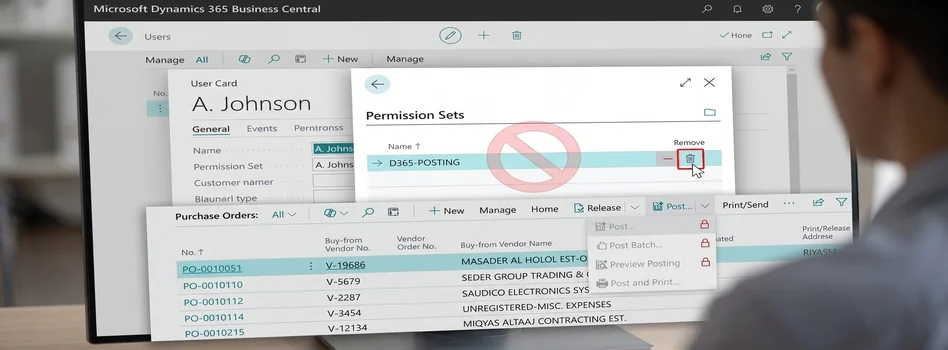
How to Remove or Hide Posting Rights for Users in Dynamics 365 Business Central
07-08-2026

Power BI Mobile Application Features and Usage Guide
27-07-2026

ZATCA E-Invoicing Phase 2 Integration Explained
27-07-2026

Saudi Arabia's NCA Cybersecurity Guidelines
27-07-2026

Row-Level Security (RLS) in Power BI
27-07-2026

Your choice regarding cookies on this site
Policy, By Continuing, You are agreeing to Our Terms of Use and Consenting to the above.
Privacy Policy Powered By |