Business & Tech Essentials

Set Up Default Account Numbers for BC Sales Invoices
In today’s Microsoft D365 class, we are going to learn how to configure Default Account Numbers in Dynamics 365 Business Central so that the correct company bank account automatically appears on sales invoices.
This setup is essential for organizations managing multiple bank accounts, multiple currencies, or different legal entities. Proper configuration ensures that customer payments are directed to the correct account without manual edits on every invoice. By the end of this quick session, you will clearly understand how the Business Central default bank account works and how to change the default bank on a BC invoice when needed.
If you need expert guidance in configuring Business Central or optimizing your ERP setup, connect with a professional Microsoft Dynamic 365 Consultant today.
Why Default Account Numbers Matter in Business Central
When creating a sales invoice in D365 Business Central sales invoice setup, the system pulls bank details from Company Information or from a bank account configured for a specific currency.
Without proper configuration:
-
The wrong bank account may print on invoices
-
Finance teams may manually correct invoices
-
Payment delays may occur
-
Multi currency handling becomes messy
Setting up Default Account Numbers ensures automation and accuracy.
How to Change Default Bank on BC Invoice
Follow these simple steps inside Dynamics 365 Business Central.
Watch Complete Video
Step 1: Search Bank Account
Use the search icon and type:
Bank Accounts
Open the relevant company bank account card.
Step 2: Open Bank Account Card
Inside the bank account card, verify:
-
Bank Account Code
-
Currency Code
-
SWIFT and IBAN details
This is where the Business Central company information bank setup connects with sales documents.
Step 3: Enable "Use as Default for Currency" Business Central
Locate the option:
Use as Default for Currency
✔ Enable this checkbox
This setting ensures that when you create a sales invoice in that currency, the system automatically selects this bank account.
This is especially important when configuring:
-
Dynamics 365 BC bank account for currency
-
Multi currency customer invoices
-
International transactions
Step 4: Sales Invoice Company Bank Account Code Automatically Populated
Now create a new Sales Invoice.
You will notice:
-
The Default bank account on sales documents is automatically filled
-
The correct bank account prints on invoice layout
-
No manual override needed
This confirms that your Business Central default bank account configuration is working correctly.
When Should You Use Multiple Default Account Numbers
You may configure different defaults when:
-
Company operates in multiple currencies
-
Separate bank accounts exist for SAR, USD, EUR
-
Different subsidiaries require different payment instructions
-
You want automatic bank selection per currency
This improves financial control and reduces posting errors.
Final Notes
So class, today we learned how to set up Default Account Numbers in D365 Business Central and enable the correct bank account to appear automatically on sales invoices.
This setup helps avoid manual changes and ensures accurate payment details.See you next time in another Microsoft D365 class.
Disclaimer: All logos, trademarks, and brand names used in this document are the property of their respective owners. Their use here is for identification purposes only and does not imply endorsement.
Recent News

Sending Alerts Using Power Automate in SharePoint (Step-by-Step Guide)
13-04-2026
%20in%20Brief.webp)
AI (Artificial Intelligence) in Brief
08-04-2026
How to Post a Batch in Purchase Orders in D365 Business Central
06-04-2026
How to Manage User Permissions in a SharePoint Document Library
29-03-2026
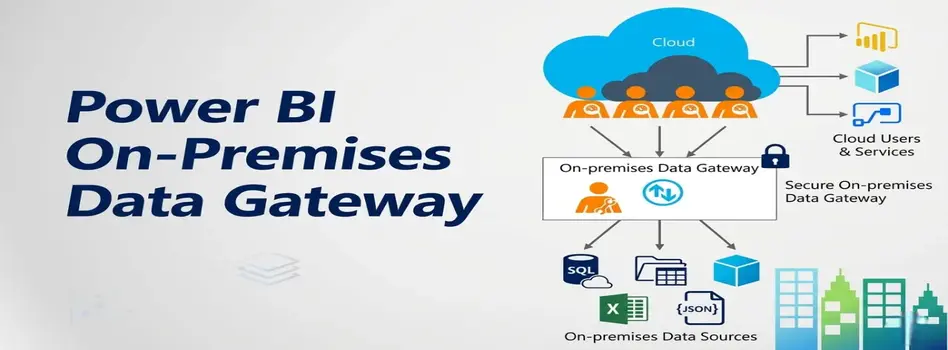
Microsoft Power BI Gateway: A Professional Guide
16-03-2026

Benchmarking Discount Voucher Practices: 2026 Industry Guide
16-03-2026

Importance of Trademarking Your Logo (How to Start Today)
07-03-2026

Saudi PDPL Enforcement Updates & Data Privacy Guidelines
23-02-2026

How to Create a Timeline in Power BI
14-02-2026

Cyber Security Awareness and Compliance Guide for Organizations
07-02-2026

Your choice regarding cookies on this site
Policy, By Continuing, You are agreeing to Our Terms of Use and Consenting to the above.
Privacy Policy Powered By |